Can You Watch TVRivo on a Samsung or LG Smart TV? Here's What Works

Samsung and LG TVs can't install Android apps, so TVRivo isn't in their app stores. Plug in a streaming stick, or install the app directly if your TV runs Google TV or Fire TV.

TVRivo Team · October 1, 2026 · 3 min read
Can You Watch TVRivo on a Samsung or LG Smart TV? Here's What Works

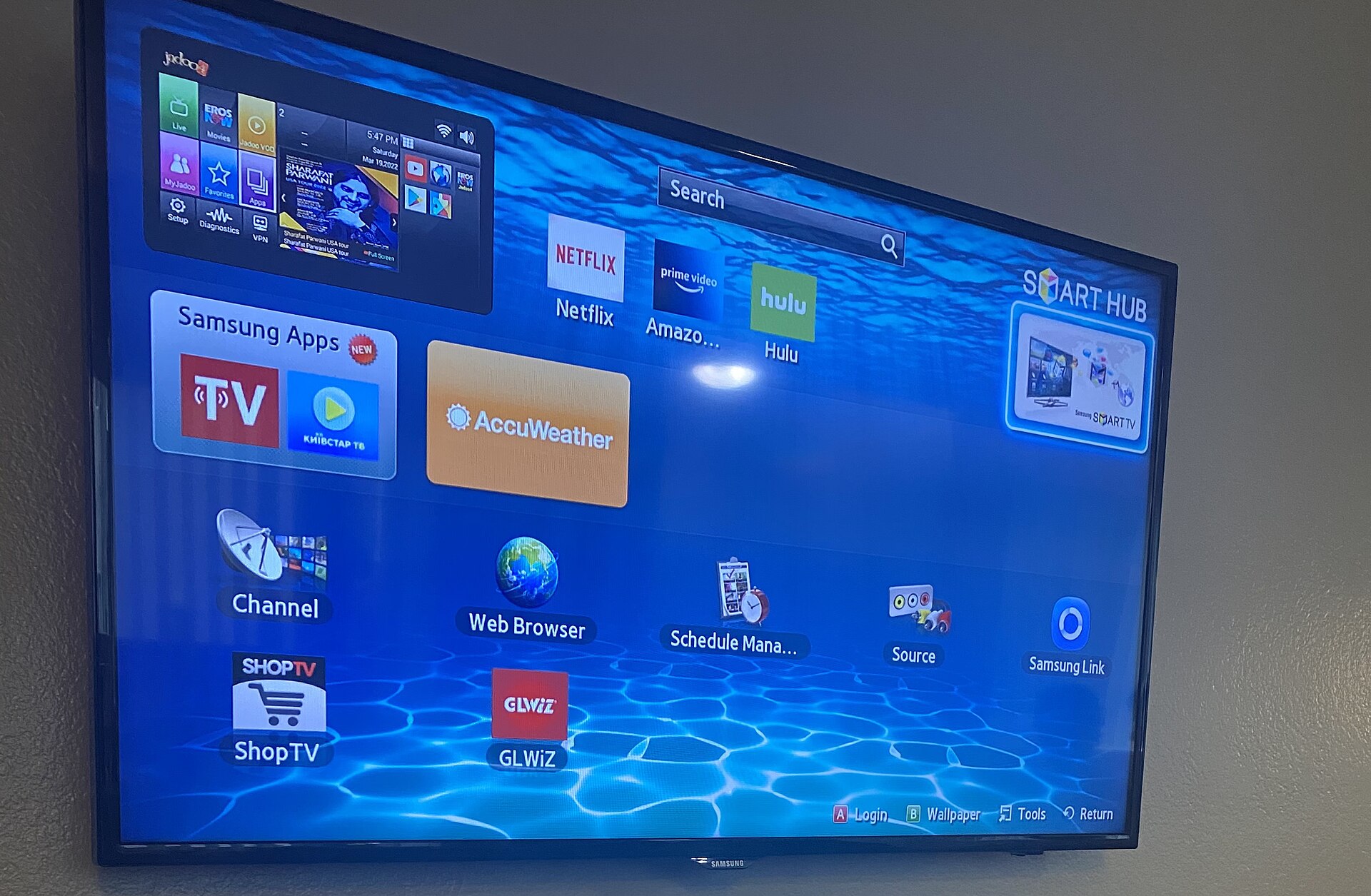
If you've searched your TV's app store for TVRivo and come up empty, here's why. The TVRivo app is an Android app. Samsung TVs run Tizen and LG TVs run webOS, and neither can install Android apps. Roku TVs can't either.

You still have good options. Which one is best depends on what your TV runs, so start there.

Find out what your TV runs

  • Samsung: Tizen. Use a streaming stick (below).

  • LG: webOS. Use a streaming stick.

  • Roku TV (the Roku logo on the home screen): use a streaming stick.

  • Google TV or Android TV: you'll see "Google TV" or "Android TV" in the settings or on the home screen. Many Sony TVs and some TCL and Hisense models run it. You can install TVRivo right on the TV.

  • Fire TV built in: the home screen looks like a Fire Stick's, with Amazon's menus. Install TVRivo right on the TV.

Samsung, LG or Roku TV: add a streaming stick

This is the simplest fix. A stick plugs into a free HDMI port, runs on the power adapter it comes with, and turns any TV into one that runs Android apps.

A Fire TV Stick 4K Plus or Fire TV Stick 4K Max works well. Avoid the Fire TV Stick 4K Select and the newest second-generation Fire TV Stick HD: they run Amazon's newer Vega OS, which can't install apps like TVRivo. A Google TV streaming device works too.

  1. Plug the stick into an HDMI port on the TV and connect its power.

  2. Use the TV remote's Source or Input button to switch to that HDMI port.

  3. Set the stick up and connect it to your Wi-Fi.

  4. Install TVRivo by following how to install TVRivo on a Fire Stick. It takes about five minutes.

TV with Fire TV built in

It works like a Fire Stick, so the Fire Stick guide applies. The only difference is that the settings live under Settings › Device & Software instead of My Fire TV.

Google TV or Android TV

You install TVRivo with the free Downloader app, the same as on a Fire Stick, but the settings are in different places. These steps are for current Google TV models. Older Android TV menus differ a little.

  1. Open the Google Play Store on the TV, search for Downloader and install Downloader by AFTVnews.

  2. Go to Settings › System › About, scroll to the bottom and select Android TV OS build about seven times, until you see You are now a developer!

  3. Open Downloader, type 4097027 in the box and press Go.

  4. When a security message appears, select Settings and switch Downloader to Allowed.

  5. Press Back to return to Downloader and select Install, then Open.

When TVRivo opens, scan the QR code on the screen with your phone and sign in with your email. The TV signs itself in.

No stick and no Google TV?

You can watch on your phone, tablet or computer right now. The setup guide shows which app to use on each device. And if you haven't tried TVRivo yet, the free 1-day trial on the plans page is a good way to test it on whatever screen you have.

Common questions

Will a stick work on an older TV?

Yes, as long as the TV has an HDMI port. A 4K stick works on an HD TV too. It just sends an HD picture.

Downloader says "Unknown Sources is disabled" on my Google TV

Developer mode isn't on yet. Go back to Settings › System › About and select Android TV OS build a few more times, until the message says you're a developer. Then try the code again.

Watch it all on TVRivo

10,000+ live channels and 200,000+ movies & titles. Try it free for a day.

TVRivo Plans

More Smart TV

See all